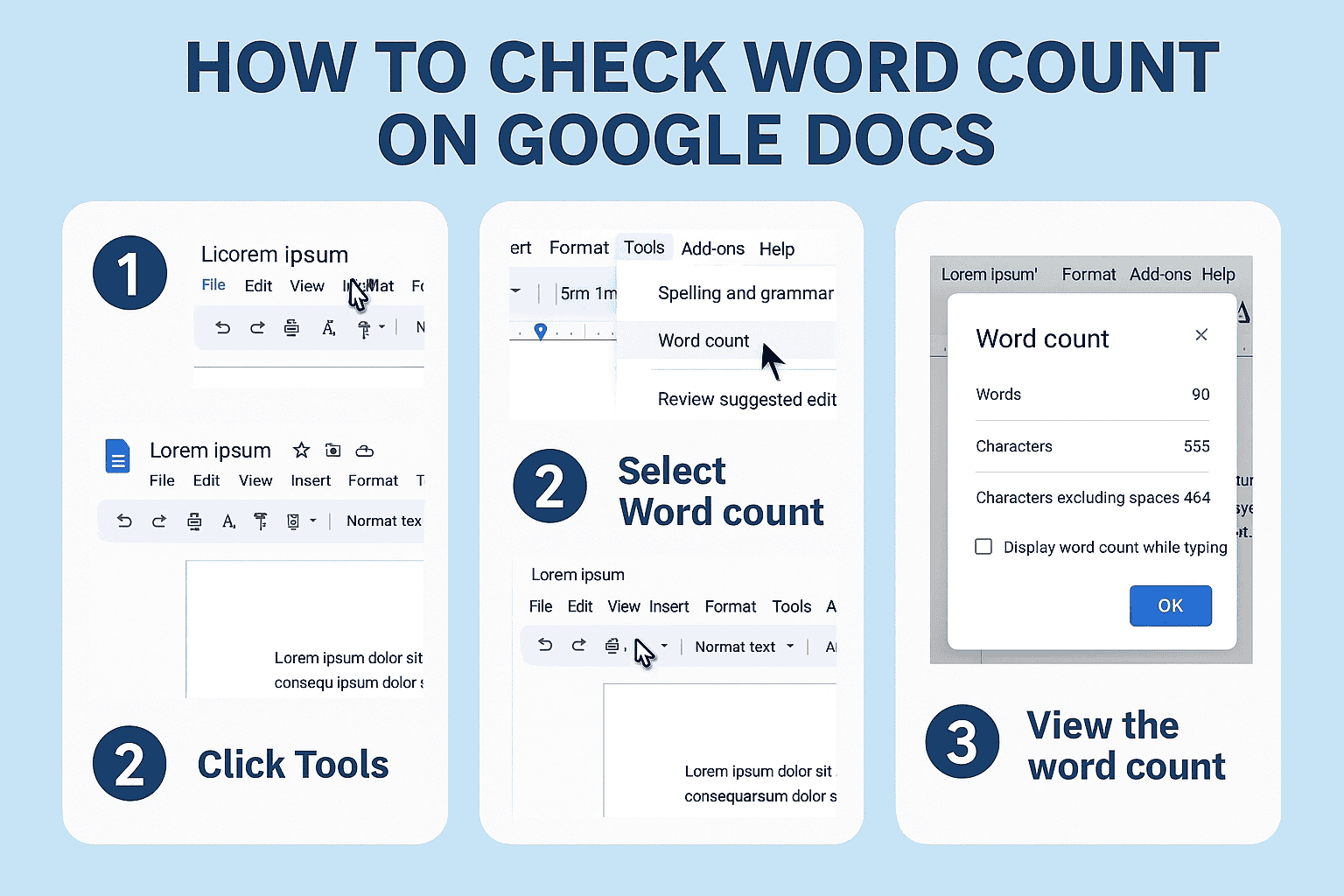
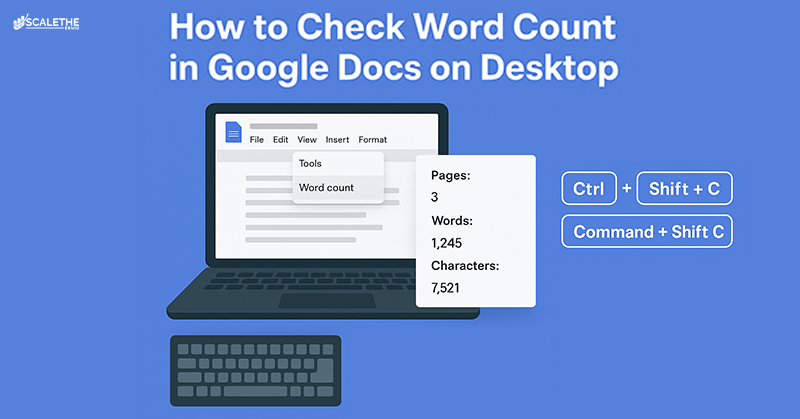
On a desktop, you can either go to Tools > Word count or use the shortcut Ctrl+Shift+C (Windows) / Command+Shift+C (Mac) to see pages, words, and characters instantly.
Have you ever begun writing an essay, cover letter, or blog post only to discover that you’re unsure of how much or how little you’ve written? Students, professionals, and content creators all frequently struggle to stay under word and character constraints. If these constraints are not met, one may lose grades on an assignment, have a job application denied, or post poorly performing content online.
The good news is that you can easily monitor your progress with Google Docs’ integrated word counter. You may easily view the quantity of words, pages, and characters (with or without spaces) on a desktop, laptop, or mobile device using the Google Docs app. To help you remain on task while you write, it even lets you monitor the word count as you’re typing.
What Is Word Count and Why Does It Matter?
Word count is the total number of words in a document. In Google Docs, this feature helps writers, students, and professionals stay within required limits, whether for essays, job applications, or blog posts. It also supports content creators on platforms like Twitter, Facebook, and LinkedIn, where character count matters just as much as words.
Benefits of Tracking Word Count for Writers, Students, and Professionals
- Writers: Stay on target for articles, novels, or screenplays.
- Students: Meet assignment requirements without going under or over the word limit.
Professionals: Ensure clarity in cover letters, proposals, and presentations.
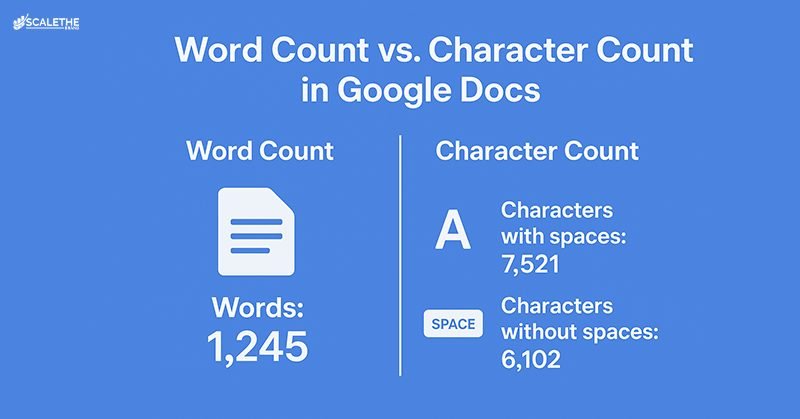
Word Count vs Character Count in Google Docs
- Word count shows the number of words in your document.
- Character count tracks letters, numbers, and spaces, useful for social media posts, SMS, or headlines where every character matters.
- In Google Docs, you can view characters with spaces and characters without spaces, making it easier to format for different platforms.
How to Check Word Count in Google Docs on Desktop ( Windows and Mac)
Google Docs offers multiple ways to check your word count, whether you prefer using the menu, a quick keyboard shortcut, or a live counter while you type.
Using the Tools > Word Count option
On a desktop or laptop, open your document in Google Docs, click Tools in the top menu, and select Word count. A box will appear showing the number of pages, words, characters with spaces, and characters without spaces.
Google Docs keyboard shortcut (Ctrl+Shift+C / Command+Shift+C)
Instead of navigating through menus, you can press
- Ctrl+Shift+C on Windows
- Command+Shift+C on Mac
This instantly opens the Google Docs word counter, making it the fastest way to check.
How to see word count while typing in Google Docs
If you want to track your progress as you write, check the box “Display word count while typing” in the word count window. The count will then appear at the bottom-left corner of your screen in real time.
How to Check Word Count in Google Docs on Mobile
Whether you’re using Android, iPhone, or iPad, the Google Docs app makes it simple to check word count with just a few taps.
Word count on the Google Docs Android app
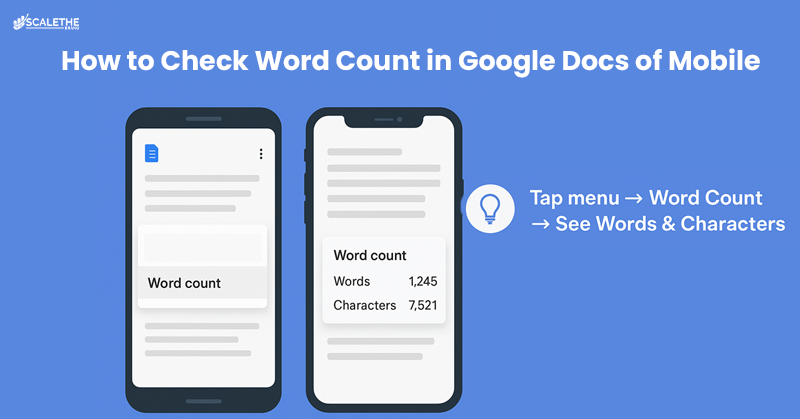
Open the Google Docs app on your Android device, then tap the three-dot menu in the top right corner. Select Word count to see the number of words, characters, and characters without spaces.
Word count on the Google Docs Android app
On iOS or iPadOS, the steps are the same. Open your document, tap the three-dot menu, and choose Word count. A pop-up will show your word and character details.
Word count on the Google Docs Android app
To find the word count for a specific section, highlight the text by holding and dragging your finger. Then open the Word count option from the menu. The app will show both the selected count and the total count for the document.
How to Get Word Count for Selected Text in Google Docs
In Google Docs, you can check the word count for a specific section instead of the whole document. Simply highlight the text you want to measure, then go to Tools > Word count or use the shortcut Ctrl+Shift+C (Windows) / Command+Shift+C (Mac). The pop-up will display:
- Word count of the selected text
- Character count (with and without spaces) for the selection
- Total count for the entire document for comparison
On Android or iOS, highlight the text, tap the three-dot menu, and select Word count to see the numbers for both the selection and the full document.
What’s Included and Excluded in Google Docs Word Count
The word count tool in Google Docs goes beyond just counting words, offering detailed insights into pages, characters, and even its own limitations.
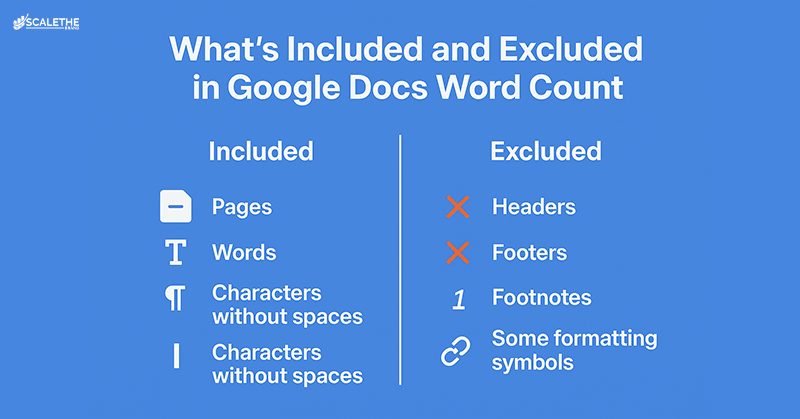
Pages, words, and characters count
The Google Docs word counter shows the total pages, words, and characters in a document. This helps writers and students quickly measure length and stay within required limits.
Pages, words, and characters count
Along with word count, Google Docs also displays:
- Characters with spaces: useful for platforms like Twitter or LinkedIn where space matters.
Characters without spaces: often needed for SEO titles, meta descriptions, and SMS messages.
Pages, words, and characters count
Not everything in your document is included. Google Docs excludes:
- Headers and footers
- Footnotes
- Some symbols and formatting elements
It also counts long URLs as multiple words, which may slightly inflate the total compared to a manual count.
Troubleshooting: Can’t Find Word Count in Google Docs?
If the word count feature isn’t showing up or working as expected, there are a few simple fixes and alternative methods you can try.
Common issues and fixes
Sometimes the Word count option in Google Docs may not appear where you expect it. This usually happens if:
- You’re using an outdated version of the Google Docs app → Update the app.
- You’re in Microsoft Office Compatibility Mode → Switch the file to standard Google Docs format.
- The menu layout looks different on your Android or iOS device → Tap the three-dot menu to find the option.
Keyboard shortcuts (Ctrl+Shift+C / Command+Shift+C) don’t work → Ensure your document is in editing mode.
Alternatives to check word count outside Google Docs
If the built-in feature doesn’t work, you can use:
- Microsoft Word: offers word and character counts.
- Online word counter tools: If the built-in feature isn’t working, you can copy your text into WordCounter Tool to instantly check words, characters, and reading time.
- Text editors with plugins: Some apps, like Notepad++ or Grammarly, show word and character counts.
When Is Knowing Your Word Count Useful?
Word count isn’t just a number; it plays an important role in academic, professional, and creative writing, where length and clarity really matter.
Academic writing and essays
Students often have strict word limits for essays, research papers, and reports. Using the Google Docs word counter ensures your work meets the required length without being under- or over.
Job applications, cover letters, and proposals
Professional documents like cover letters, grant proposals, and job applications usually set word or character limits. Tracking word count helps you stay clear, concise, and within guidelines.
Blog posts, social media, and SEO optimization
For content creators, knowing word count and character count is key:
- Blog posts: often optimized between 1,000–2,000 words for SEO. If you’re learning how to write an article, tracking word count in Google Docs helps you plan the structure, introduction, body, and conclusion while staying within the ideal range for SEO and readability.
- Social media: platforms like Twitter, LinkedIn, and Instagram have character limits, so the characters with spaces count in Google Docs is especially useful.
- Meta descriptions and headlines: staying within character count improves visibility in search results.
Many small businesses use affordable SEO services for small business to optimize content length, keyword placement, and readability. Word count tracking in Google Docs makes collaboration with SEO teams much easier.
Final Thoughts:
For authors, students, and professionals, the Google Docs word counter is an easy-to-use yet effective tool. Whether you’re writing an essay, cover letter, blog post, or social media update, it helps you adhere to word and character constraints. It is adaptable to various demands thanks to features like word counting while typing, verifying letters with or without spaces, and counting chosen text. You may satisfy criteria, write more accurately, and maintain content optimization for readers and platforms by using it on a regular basis.
Frequently Asked Questions
Here are some answers to common questions
How do I check the word count in Google Docs on desktop?
Go to Tools > Word count or press Ctrl+Shift+C (Windows) or Command+Shift+C (Mac). A pop-up will show pages, words, and characters.
Can I see the word count while typing in Google Docs?
Yes. In the word count pop-up, check the option “Display word count while typing.” The count will then appear at the bottom-left corner of your screen.
How do I check word count in the Google Docs mobile app?
On Android or iOS, open your document, tap the three-dot menu, and select Word count to view words and characters.
Can I check the word count for selected text in Google Docs?
Yes. Highlight the section of text, then open Word count. It will display counts for both the selected text and the entire document.
What’s included in Google Docs' word count?
Google Docs counts pages, words, and characters (with and without spaces), but it excludes headers, footers, and footnotes.
Why is word count important for writers and students?
It ensures your writing meets assignment or application requirements, keeps content concise, and helps optimize blog posts or SEO-friendly articles.
Does Google Docs' word count include links?
Yes, long URLs are counted as multiple words, which can make the total slightly higher than a manual count.
Can I estimate reading time with word count?
Yes. On average, people read about 250 words per minute. For example, a 1,000-word article takes around 4 minutes to read.